Move between a desk display and a laptop without losing your place
Treat each screen arrangement as a working layout, then make the transition between them predictable.
Give both arrangements a purpose
A laptop that travels between a desk and a kitchen table effectively has two workspaces. At the desk, a wide display might hold a document beside its reference material. Away from it, those windows compete for the same small rectangle. Trying to preserve every position usually creates more effort than designing a simpler portable arrangement. Start by describing what each workspace needs to accomplish. The desk might support comparison and editing; the laptop might support reading, correspondence, and a focused revision. Those are useful differences rather than evidence that one setup has failed.
List the applications used in one ordinary session and distinguish the active task from the supporting material. A spreadsheet being edited is active. A browser containing its instructions is support. A messaging application may only need occasional attention. This distinction helps allocate space deliberately. If everything is treated as equally important, the large display fills with windows that become impossible to manage when disconnected. A workable transition begins with deciding what deserves to remain visible.
Match the digital map to the physical desk
When displays are extended, the operating system treats them as connected areas of a larger desktop. Their arrangement in display settings determines where a pointer crosses between them. Place the virtual screens in roughly the same relationship as the physical screens, including their vertical offset. Otherwise, moving toward the edge beside the other display can feel as though the pointer has struck a wall. Use the display identification control rather than assuming that the number shown corresponds to the left or right monitor.
Choose a primary display according to where you normally begin work. This is a preference about navigation, not a statement about which panel has the best picture. Check scaling on each display with actual text, a spreadsheet grid, and familiar controls. Matching numerical scaling values does not guarantee matching physical text sizes because pixel density differs. Adjust until text is comfortable and the pointer transition makes sense. Record these choices in a brief setup note if several docks or desks are involved.
Make a desk layout around one task
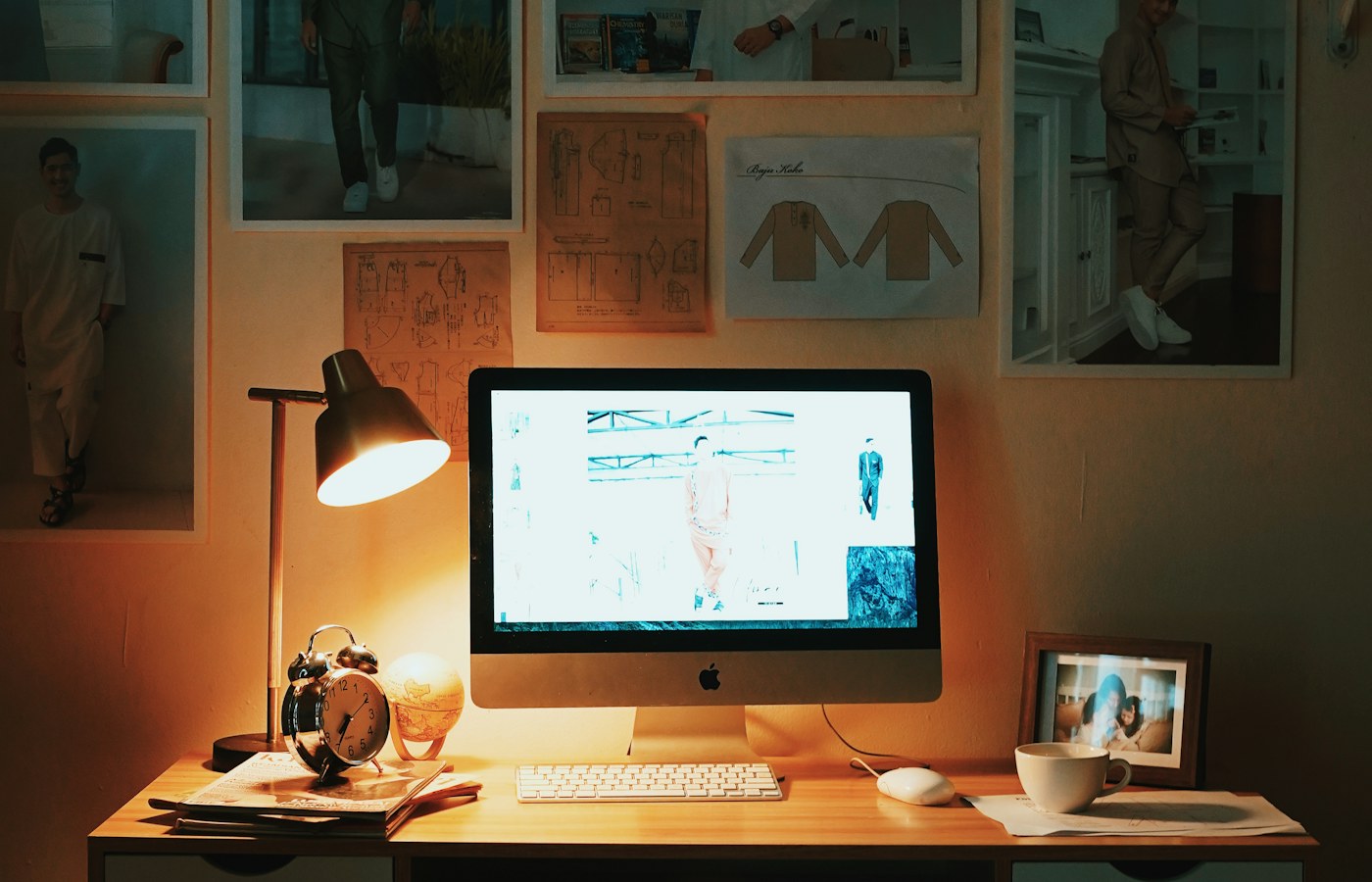
Build the desk layout using a real piece of work. Put the main editing window where your eyes naturally rest, and place reference material where it can be consulted without repeated head turning. Two equal halves work well for comparison, but a narrow reference column may be better when writing. Avoid choosing a layout because it looks balanced in a screenshot. Its value comes from reducing the movements required by the task you actually perform throughout the day.
Keep a spare area or an obvious switching method for occasional windows. A file picker, authentication prompt, or settings dialog needs somewhere to appear. If every visible pixel belongs to a tightly packed grid, a small interruption can scatter the arrangement. Workspaces or virtual desktops can separate tasks, although their behavior differs by system. Give each workspace a clear purpose rather than making a new one for every application. The aim is to recover a task quickly, not to build an elaborate filing system for windows.
Design a smaller portable layout
For the laptop arrangement, start with one main window and one dependable way to consult support material. That might mean switching between two full windows, using a modest split, or placing references on a separate virtual desktop. Reading a tiny four-window version of the desk arrangement is rarely productive. Increase document zoom when necessary and accept that less material will be visible at once. A smaller screen can still be a comfortable workspace if the task has a clear center.
Try a representative sequence before leaving the desk: open the reference, return to the draft, find a file, and answer one routine message. Notice where you lose context. If switching applications repeatedly returns to the wrong document, improve window titles or close irrelevant copies. If a reference panel disappears inside a narrow application window, learn its show and hide control. These adjustments solve the portable problem directly instead of requiring the laptop to imitate a display with twice its usable area.
Prepare the moment of disconnection
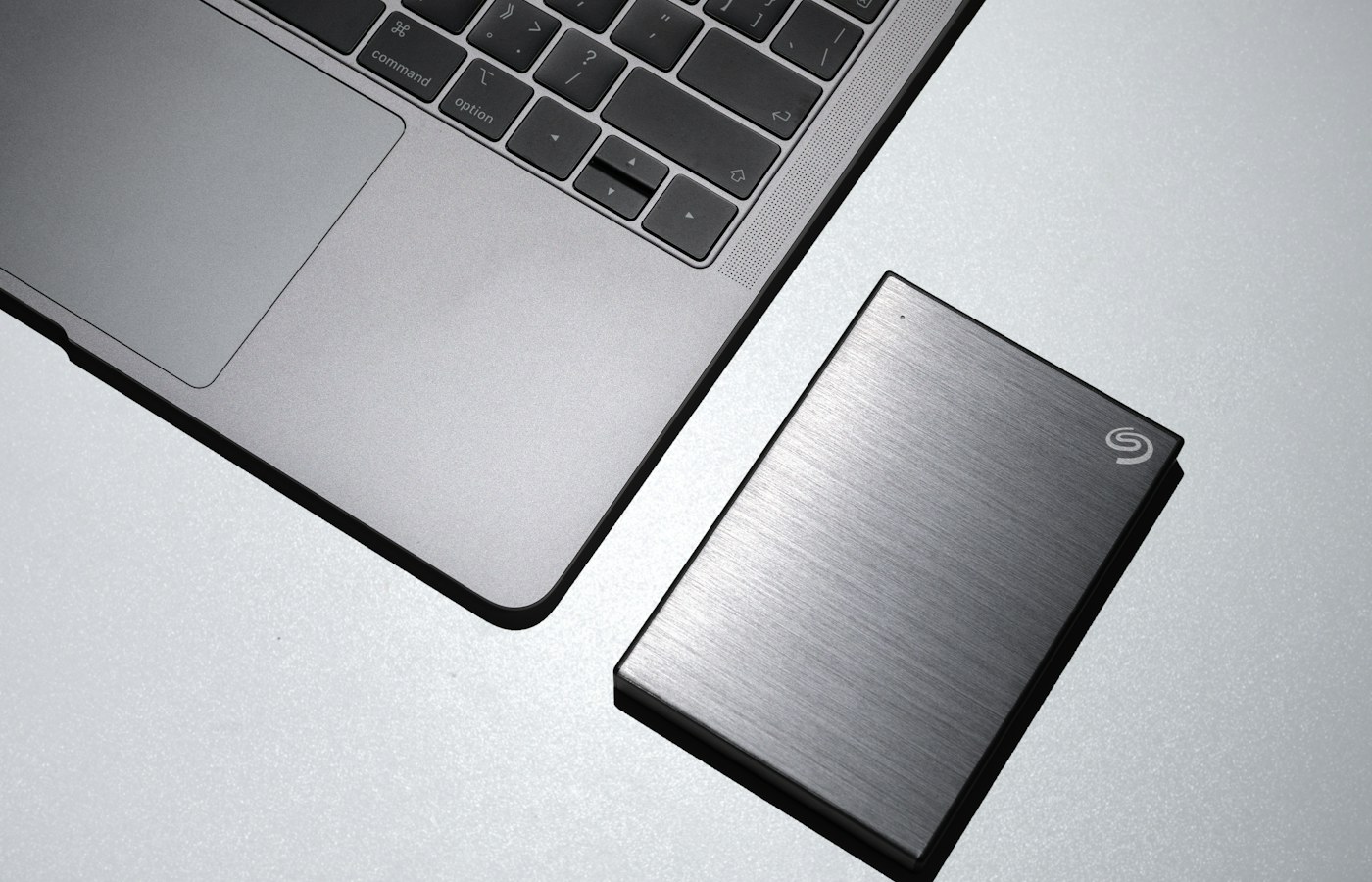
Before unplugging, save open work and note the next action in the active document or a small task note. A sentence such as verify the totals against the April export preserves more context than a collection of visible windows. Close transient dialogs and finish file transfers involving equipment connected through the dock. If an external drive is attached, follow the operating system's safe removal process. Changing a display connection should not also interrupt an unrelated storage operation.
Disconnect during a quiet moment and wait for the desktop to settle. Applications may resize, move, or recalculate their layout. Do not immediately drag every window while the operating system is still discovering the new arrangement. Check the active application first, then any window needed for the next task. If a particular program consistently restores badly, make it part of the transition routine: maximize it on the laptop or reopen its main window after saving, rather than repeatedly improvising a repair.
Recover windows that appear to be missing
A window can remain open while appearing outside the useful area or behind another window. First use the system's window overview or application switcher to confirm it exists. Then use the operating system's move, maximize, or display movement controls. On Windows, Microsoft documents Windows key with Shift and a left or right arrow as a way to move an application window between monitors. Check focus before using any shortcut so that the intended window receives the command.
If the missing item is a dialog, return to its parent application and look for a pending prompt. Some applications prevent interaction with the main window until a dialog is answered. Repeated clicking can make this feel like a frozen program even when it is waiting for input elsewhere. Avoid force quitting until you have checked the window overview and saved what you can. Record the application and circumstances if the problem repeats; a consistent reproduction is more useful than a vague report that windows sometimes vanish.
Reconnect in a consistent order
At the desk, connect the display arrangement and give it time to be recognized before rebuilding the working layout. Confirm that the intended extended or mirrored mode is active. Mirroring presents the same desktop on both screens, while extending provides separate areas; confusing the two produces strange expectations about where windows should go. A remembered layout can help, but it should be a convenience layered over an understandable manual arrangement. You still need to recognize a wrong display map.
Check one familiar window on each screen rather than inspecting every setting every time. If the pointer crosses correctly and text looks right, continue working. If the arrangement has changed unexpectedly, inspect connections and display identification before altering scaling or resolution. A different port, dock connection, or display detection order can change the circumstances. Keep the correction small and explainable. A stable routine reduces the temptation to make several unrelated adjustments just because the first screen you see looks unusual.
Separate display trouble from application trouble
When text looks wrong in only one application, compare it with a system settings window and another program on the same display. A document zoom setting, browser zoom level, or application-specific scaling behavior can be responsible. When every application looks wrong on a particular panel, investigate the display configuration instead. This comparison saves time because it identifies the scope of the problem before you change settings that affect the whole machine and every future session.
Likewise, distinguish a slow redraw from a lost document. Large worksheets, graphics programs, and remote sessions may take time to adapt after a display change. Allow a reasonable pause and inspect whether input still works. If only one application consistently struggles, record its version, the screen arrangement, and a short reproduction sequence. Consult its official support information before adding third-party window utilities. An extra utility can be useful, but it also adds another layer whose behavior you would have to understand.
Keep the routine small enough to use
A practical transition note can fit into a few lines: save work, write the next action, finish dock transfers, disconnect, and recover the main window. The return note can identify the primary display and the two window positions that matter. Do not document every cosmetic choice. The note should help after a week away or when using a replacement cable, not require constant maintenance after every casual adjustment. The best routine remains understandable without a separate tutorial.
Judge success by recovery time and comfort. Can you resume the main task without hunting for windows? Can you read the portable layout without leaning toward the screen? Does reconnecting restore a usable desk even when positions are imperfect? These questions are more useful than demanding that every window return to the exact same coordinates. A dependable two-layout workflow preserves the task and its context while allowing the physical workspace to change. That is what makes moving between screens feel ordinary.
Check the transition after a real workday
After a day using both arrangements, review the moments that required repair. A window that was inconvenient once may not justify a new system, while a document that disappears every time deserves a specific remedy. Update the short transition note with that remedy and repeat the move on another ordinary day. Include an unscheduled interruption, such as briefly disconnecting for a meeting, in your assessment. A layout routine succeeds when it survives the way you actually move around, including the times when you have only a minute to pack up. Keep the working context easy to resume even when the screen geometry changes unexpectedly.
Further reading
Questions or a correction? Contact Tian Xin Kai at [email protected].
General educational guidance. Features vary; check your device documentation before changing settings.